
Cursor
Connect your Cursor team account to track AI coding assistant spend across users and models in real time.

AI coding assistant
What StackSpend tracks
Once connected, StackSpend pulls the following data from the Cursor Admin API:
- Real-time cost via the Admin API
- Model-level usage breakdown (which models are consuming tokens)
- User-level breakdown (spend per team member)
- Token usage (input and output tokens per request)
- Cursor token fees (seat and usage charges)
Prerequisites
- A Cursor team account
- Team admin access
- A Team API key (created with Admin scope)
Setup
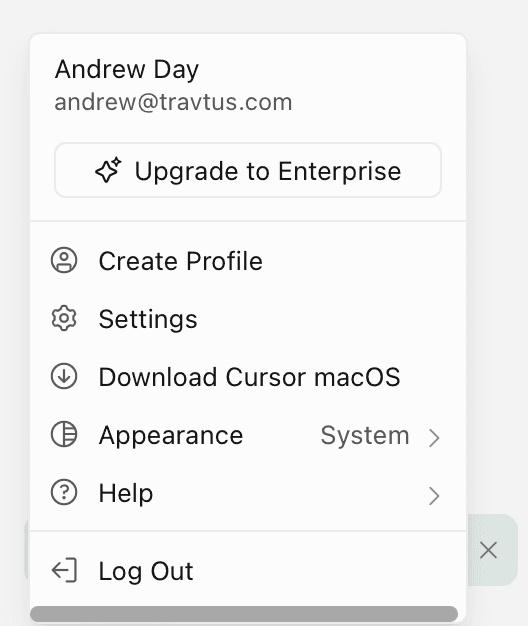
Open Cursor Settings
Go to cursor.com/dashboard/api, or open the account menu in the top-right and click Settings.
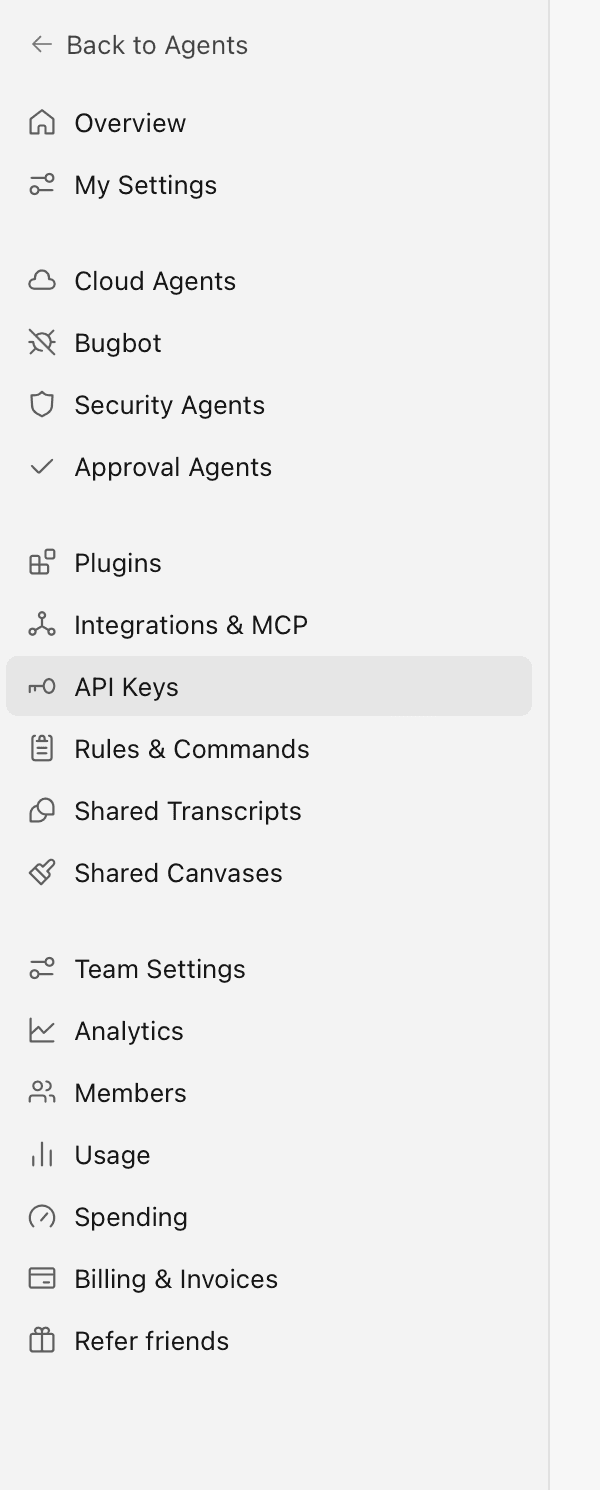
Go to API Keys
In the settings sidebar, select API Keys.
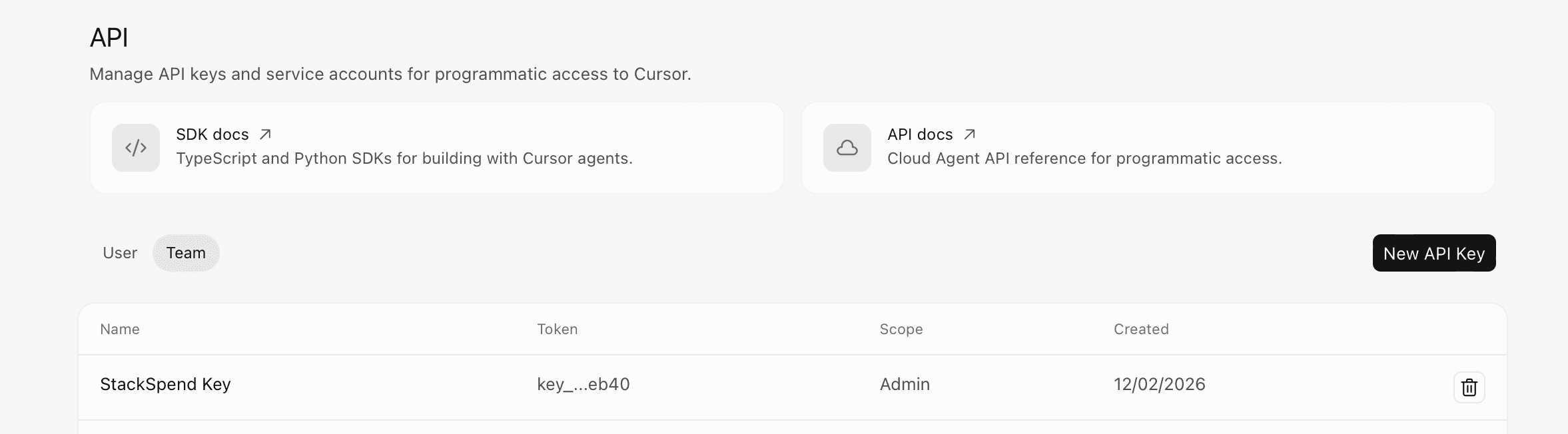
Create a Team API key
Switch the toggle from User to Team, then click New API Key. Give it a descriptive name (for example, StackSpend) — it is created with Admin scope.
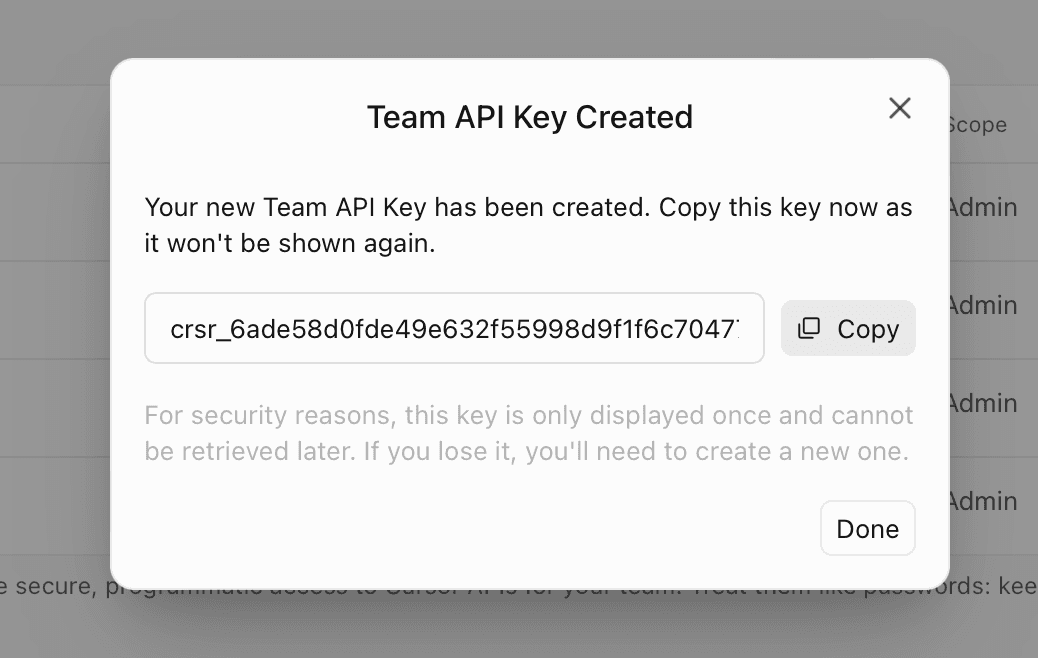
Copy the key
Copy the key now (it starts with crsr_) — Cursor will only show it once. If you lose it, just create a new one.
Add to StackSpend
In StackSpend, go to Providers → Add provider and select Cursor. Paste your key into the Admin API Key field and click Save.
Add Cursor provider
A Team API key with Admin scope.
Verify the connection
StackSpend will immediately run an initial sync. Your usage data appears within a few minutes on your Cursor provider dashboard. If the connection fails, double- check that the API key has not been revoked and that it was created under the Team tab (Admin scope) rather than as a personal User key.
Data availability
| Property | Value |
|---|---|
| Data latency | Real-time |
| Setup time | ~2 min |
For a full list of supported providers, see the Connecting Providers overview.
Frequently asked questions
What credential does StackSpend need to connect Cursor?
StackSpend needs a Cursor Team API key with Admin scope (it starts with crsr_). Team keys can only be generated by a Cursor team admin under the Team tab, not as a personal User key.
Is the connection read-only?
Yes. StackSpend only reads usage and cost data from the Cursor Admin API and never writes to your Cursor account. It breaks spend down per user and per model, including token usage and seat and usage fees.
How long does setup take and how much history loads?
Setup takes about 2 minutes. StackSpend runs an initial sync immediately after you save and then tracks Cursor spend in real time as new usage accrues.
Why don't I see any cost data yet?
Usage data appears within a few minutes of saving on your Cursor provider dashboard. If the connection fails, confirm the API key has not been revoked and that it was created under the Team tab with Admin scope rather than as a personal User key.